Instance setup
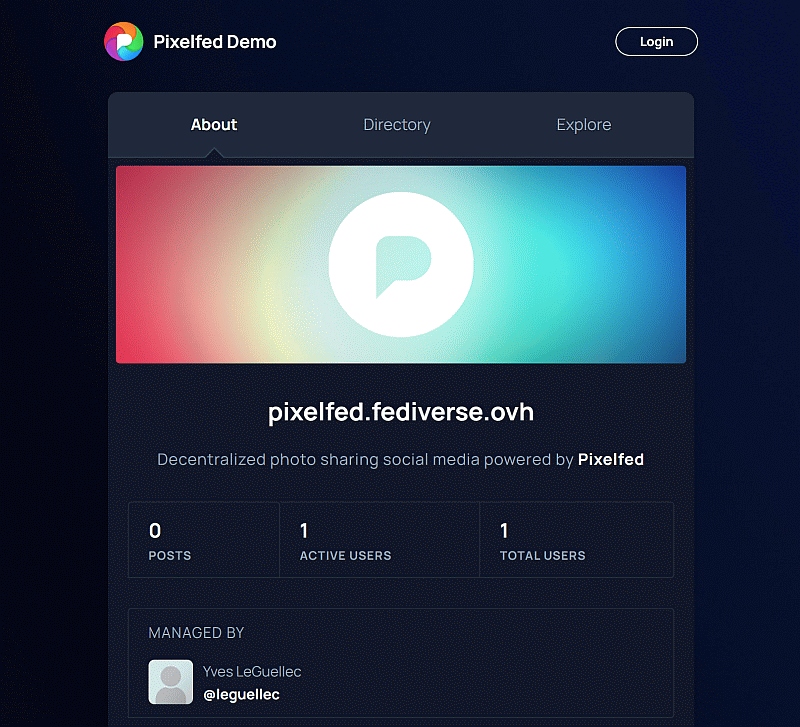
Once on the working front page, click on Login
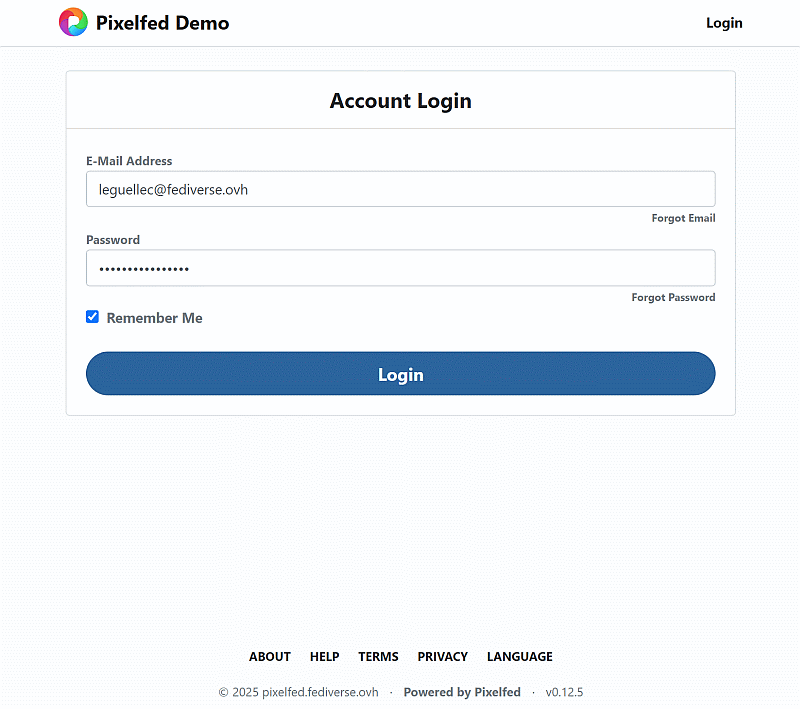
Connect using the admin credentials
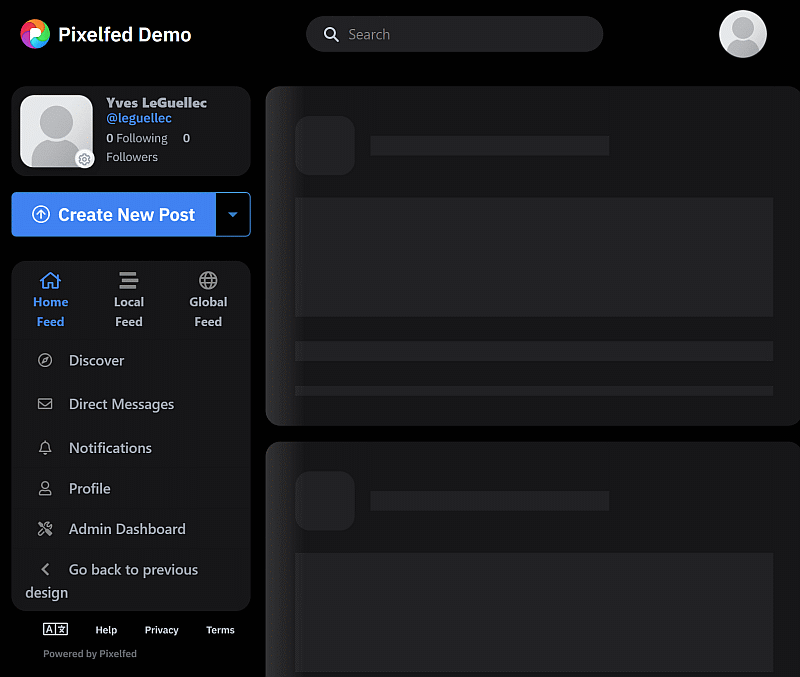
Once connected, click on Admin Dashboard, or visit pixelfed.cogip.be/i/admin/dashboard
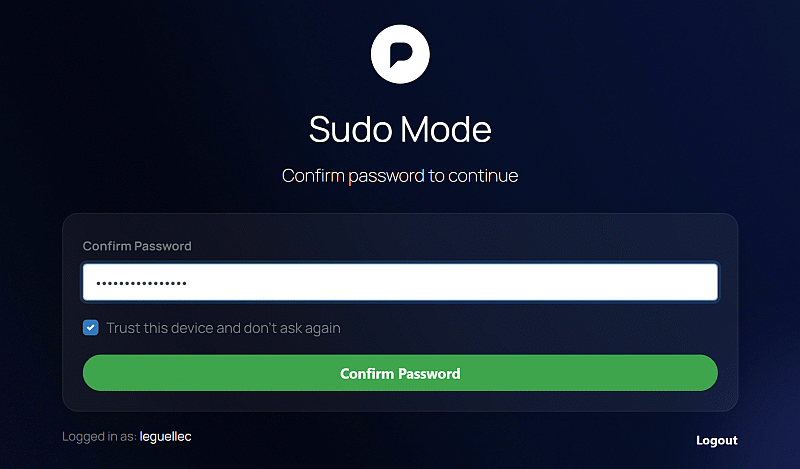
First admin connect needs confirmation
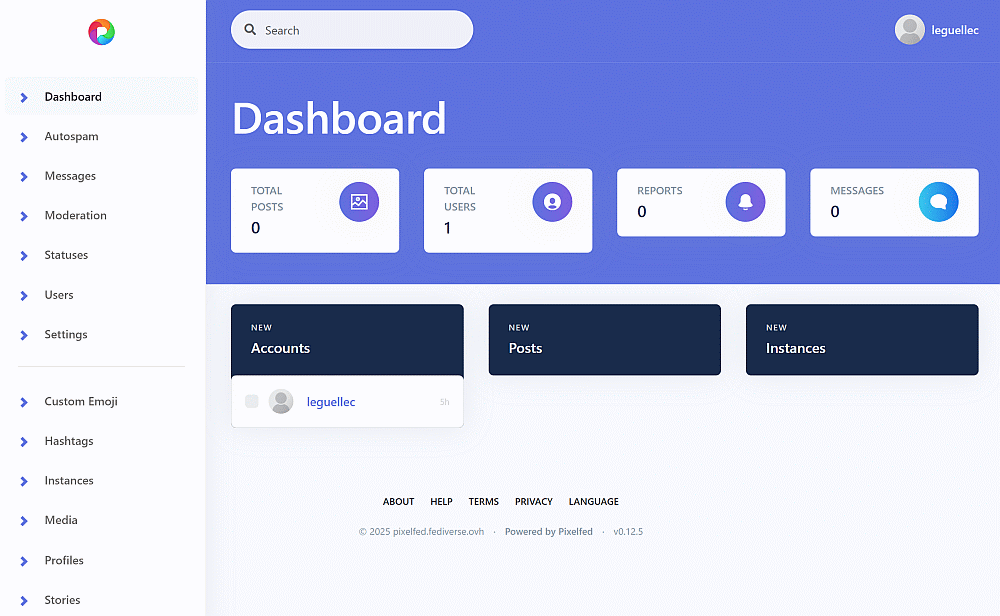
Admin dashboard is ready. Click on Settings
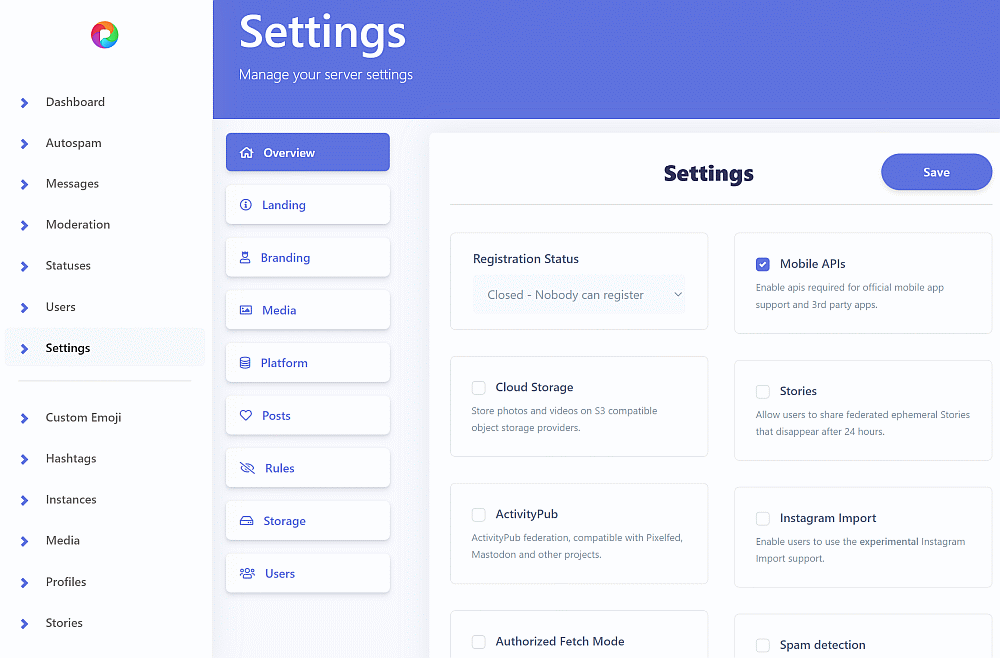
In Overview sub-menu
- Change
Registration StatustoFiltered - Anyone can apply - Enable
StoriesActivityPubInstagram ImportSpam detection
- Click
Save
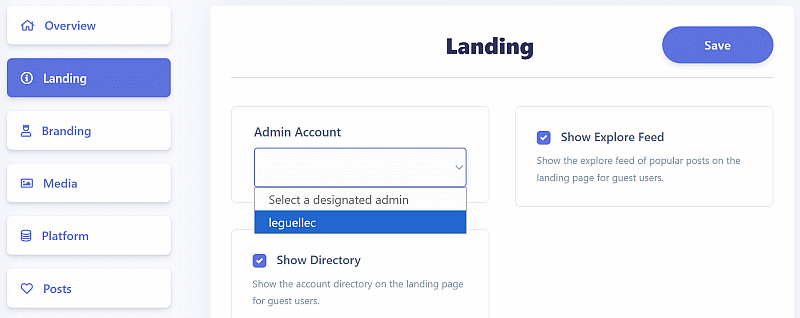
In Landing sub-menu, select the admin user and click Save
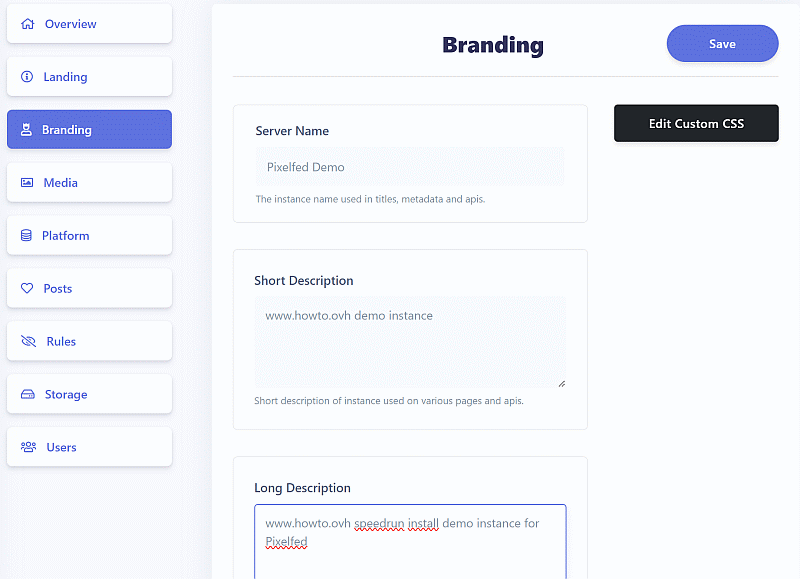
In Branding sub-menu, fill the short and long descriptions and click Save
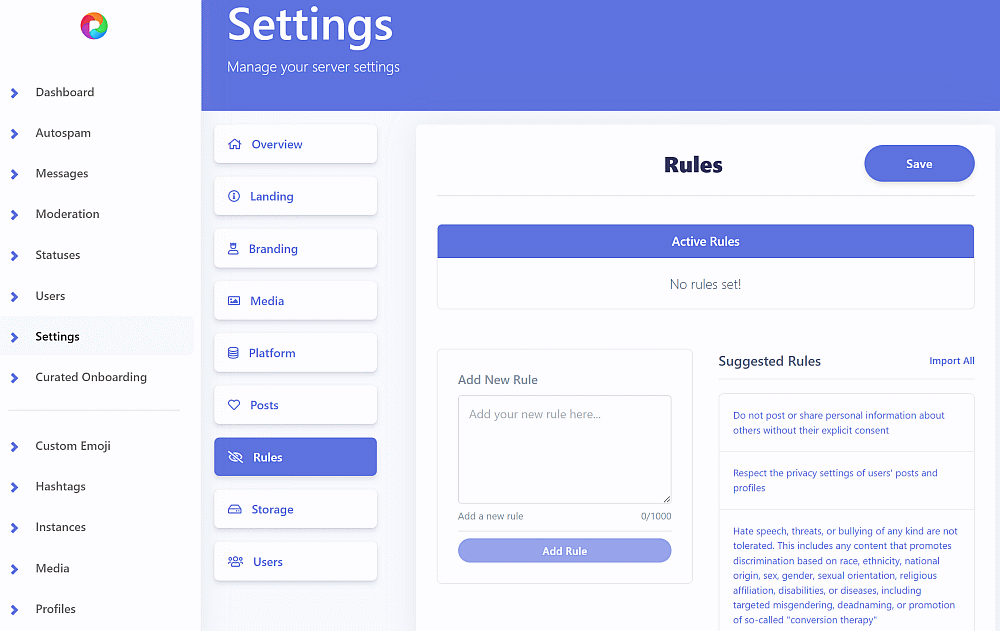
In Rules sub-menu, either
- Select
Import All - Select individual rule, then click
Add Rulefor each one - Write custom one, then click
Add Rulefor each one
Then click Save
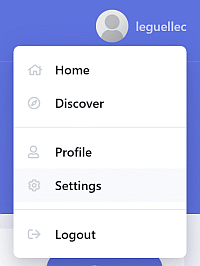
In the top-right hand corner, click on the connected profile and choose Settings
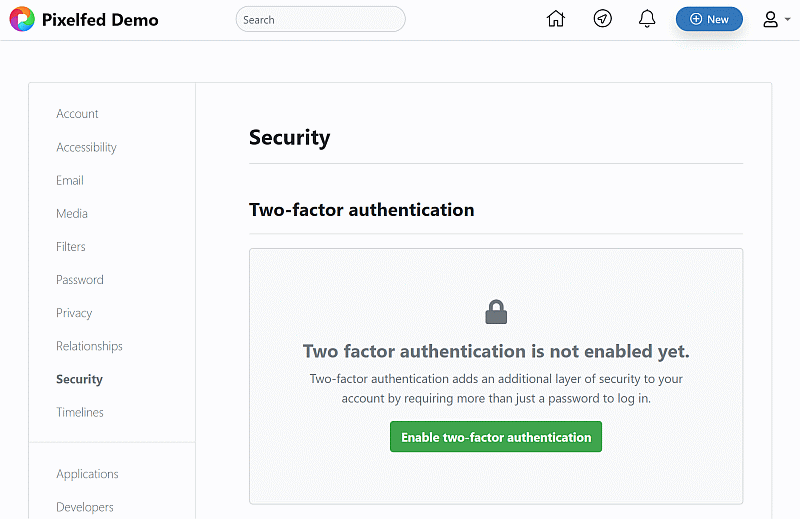
Click on Enable two-factor authentification and set it up
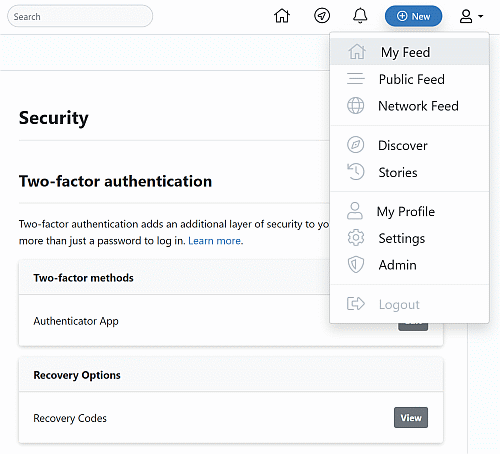
Once enabled, select the user menu and go to My Feed
Click on Create New Post
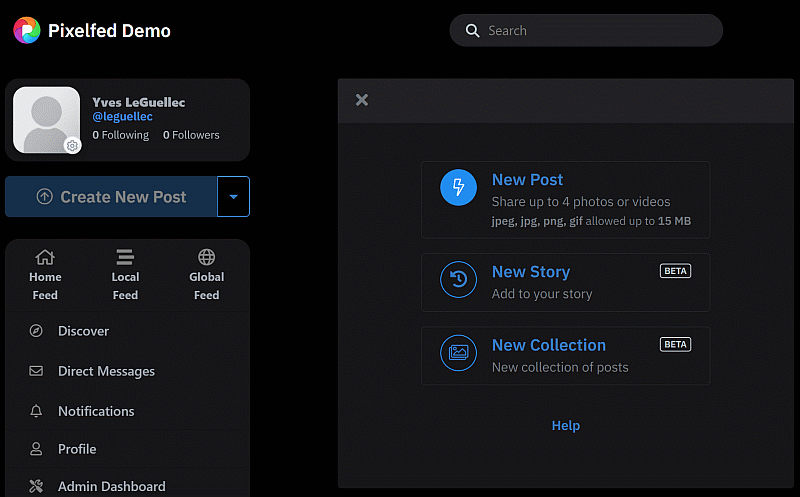
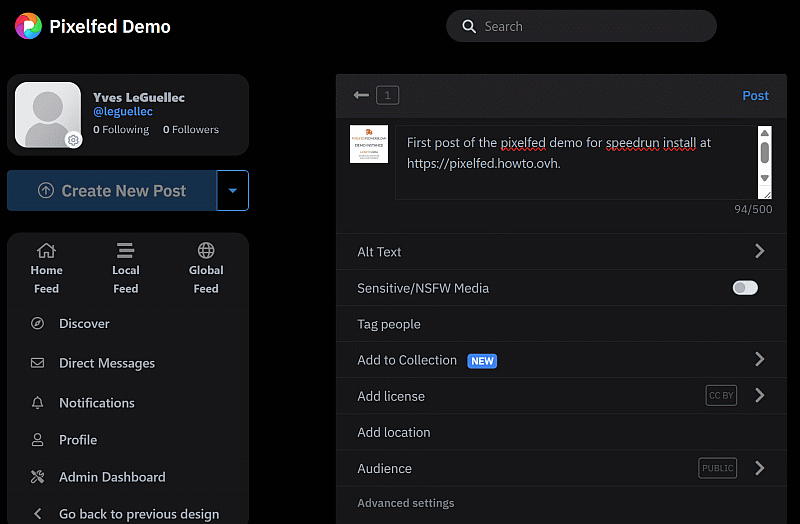
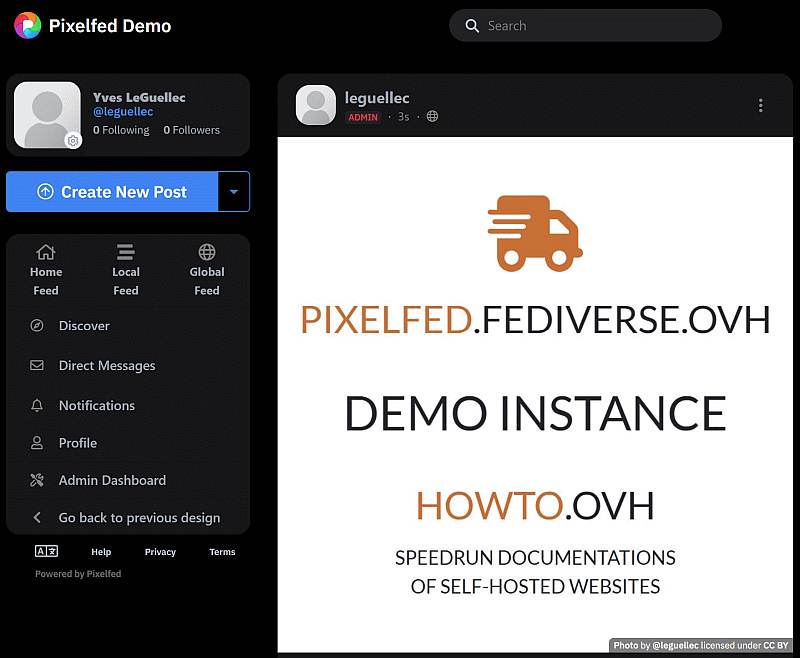
Important
Repeat this step and post 3 more photos; at least 4 favorite posts are needed to be able to submit the server.Go back to admin dashboard, scroll down and click on Directory
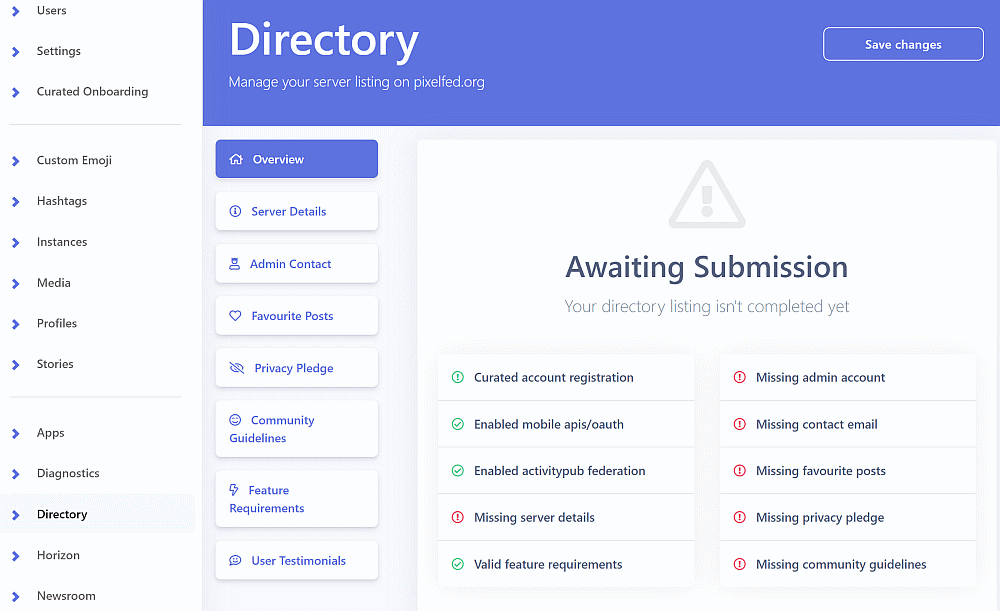
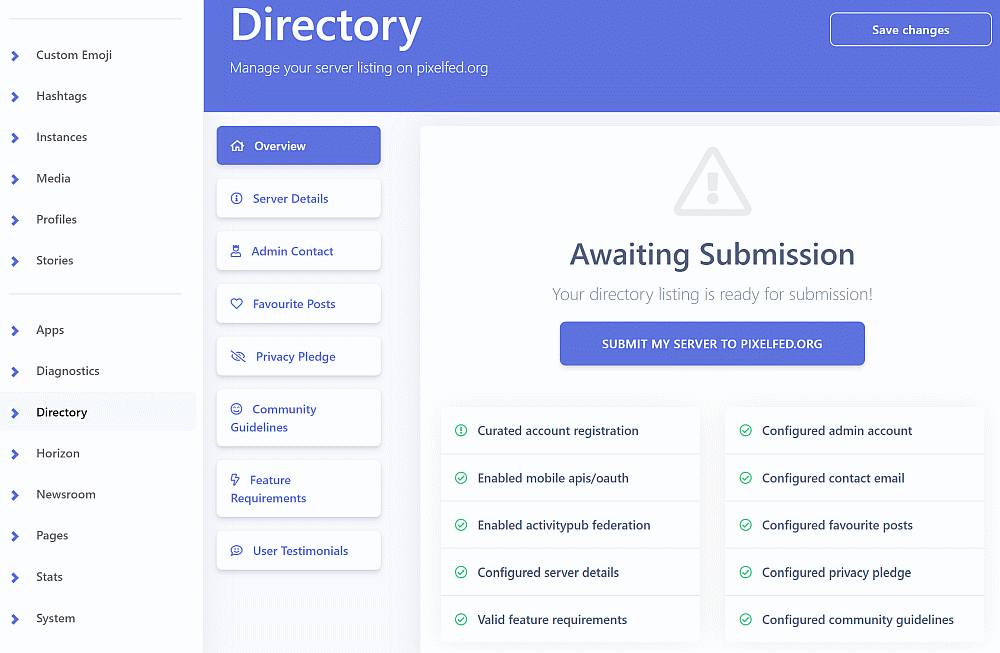
To register the instance on pixelfed server list, missing information must be filled
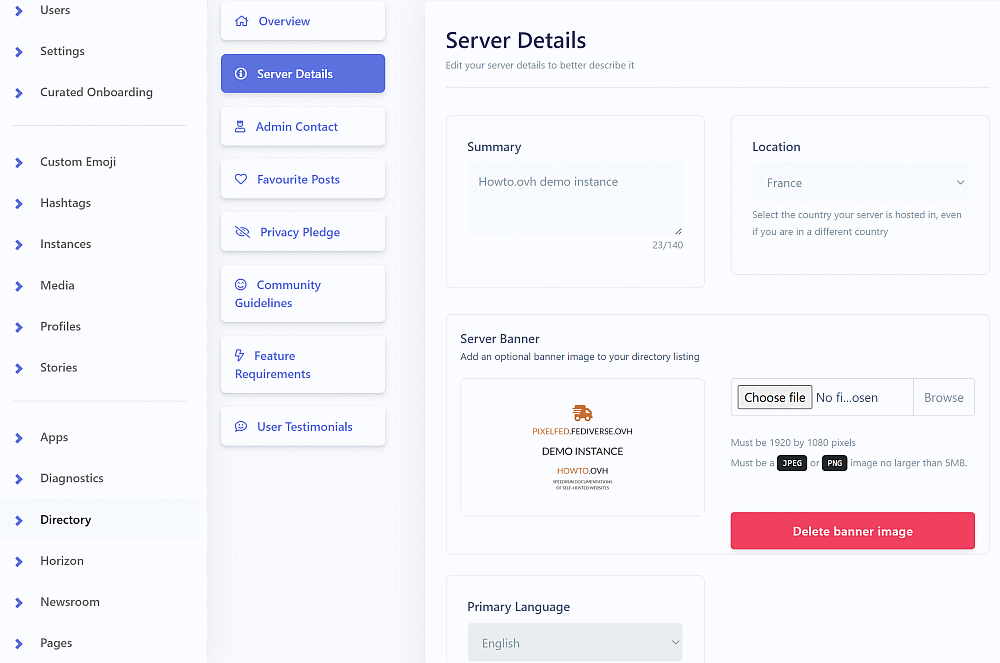
Click on Server details, fill in details and click Save changes
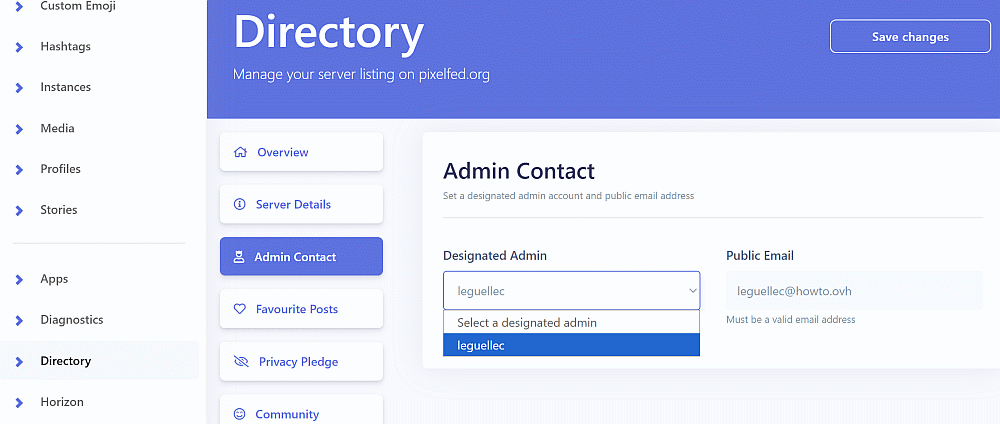
Click on Admin Contact, select the admin user, add their email, and click Save changes
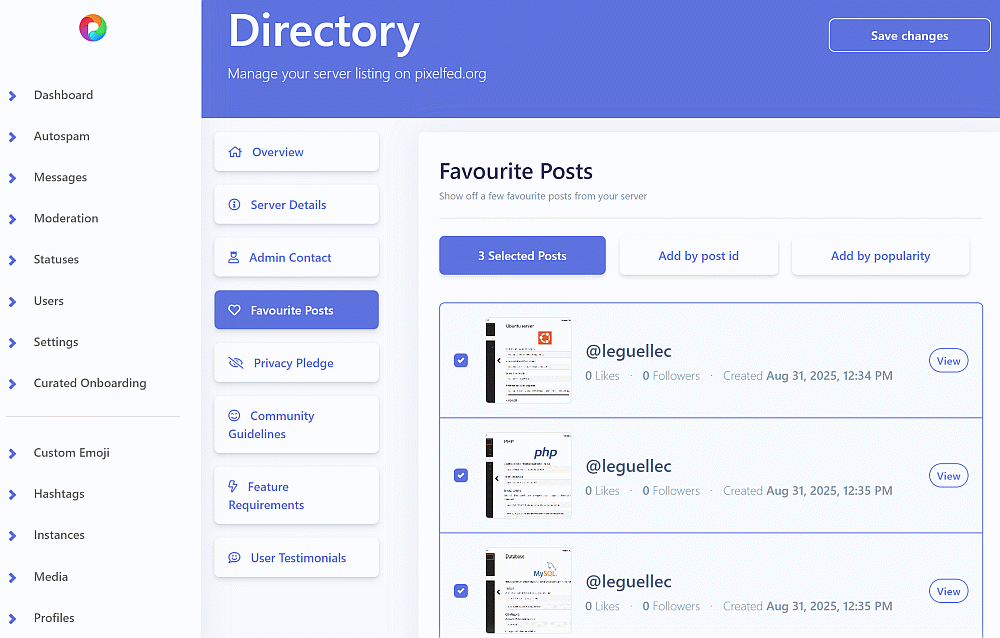
Click on Favorite Posts and Add by popularity. Select the 4 posts and click Save changes
sudo php /usr/share/webapps/pixelfed/artisan route:cache
sudo php /usr/share/webapps/pixelfed/artisan view:cacheClear browser cache and refresh the page.
Add by post id is also a solution, visiting pixelfed.fediverse.ovh/i/web/discover, and clicking on a post; the id is the number displayed in the browser url.
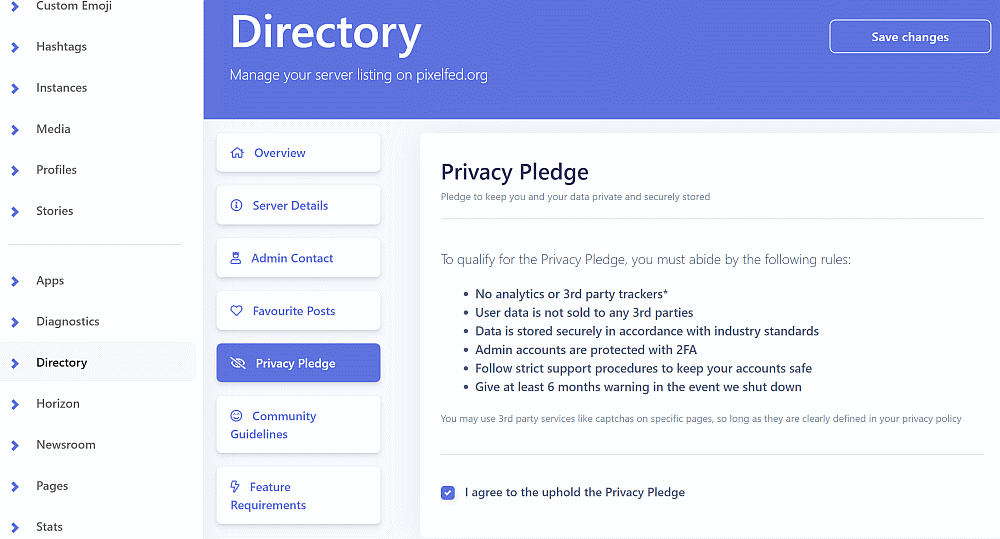
Click on Privacy Pledge, tick I agree to the uphold the Privacy Pledge and click Save changes
The instance is ready for submission, click Submit my server to pixelfed.org
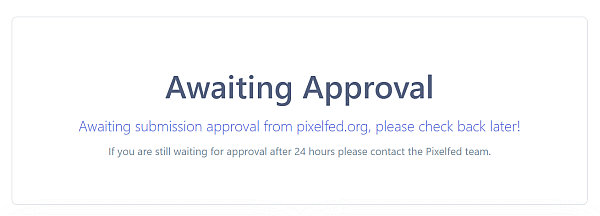
Wait about 24h and check back
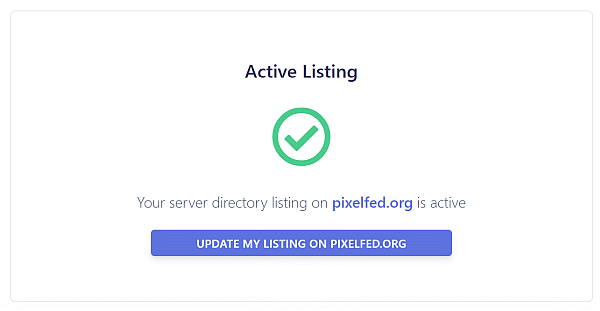
The server is now listed on pixelfed.org.